
Thursday, October 5, 2006

Wednesday, October 4, 2006
The latest
The Jimmy Sayer Handstand Foundation is having a dinner and auction on Oct. 13th 2006. The Jimmy Sayer Handstand Foundation is a local South Jersey 501(c)(3) non-profit organization assisting children and their families who are coping with the effects of pre-maturity, or financial burden associated with medical conditions.
I have donated 1 free session plus a free 11x14 for the auction. This is a wonderful organization of which I have personally been involved in some of their other fundraisers. I recommended a family to the organization who had a little girl with Leukemia. The organization went to their home and blessed their whole family with things to lift their spirits and bring them joy.
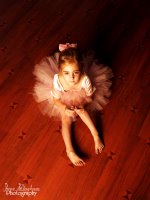
So if you are able to attend the dinner and auction, look for this display there.
*This free session and free 11x14 is only for the winner of the auction at The Jimmy Sayer Handstand Foundation dinner and auction on 10/13/06.
I have donated 1 free session plus a free 11x14 for the auction. This is a wonderful organization of which I have personally been involved in some of their other fundraisers. I recommended a family to the organization who had a little girl with Leukemia. The organization went to their home and blessed their whole family with things to lift their spirits and bring them joy.
So if you are able to attend the dinner and auction, look for this display there.

*This free session and free 11x14 is only for the winner of the auction at The Jimmy Sayer Handstand Foundation dinner and auction on 10/13/06.
Wednesday, September 27, 2006

Tuesday, September 26, 2006
30 Days, Day 7
Had a rough day as my self-portrait will show...after a very emotional meeting I went out to my car and cried...this is the moment, blotchy skin, teary eyes....life happens... 

Monday, September 25, 2006
30 days of self-portraits, day 5 and 6
I failed to post yesterday so I am combining day 5 and 6. One was taken this morning at the doctor's office, just my finger. The other one I am cheating with, I took it on day two just after getting out of the shower with my wet hair. Almost identical to day 2 but in black and white. Eh, sorry been a busy past few days.


Saturday, September 23, 2006
Obviously
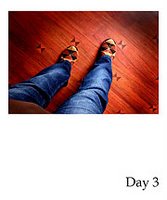
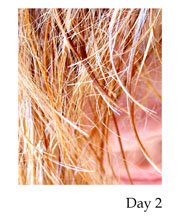
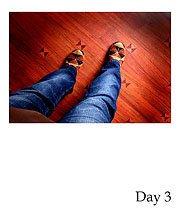
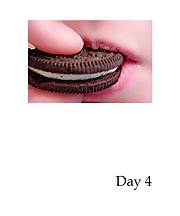
I am not very good at blogging regularly! I recently was challenged to do 30 days of self-portraits. This does not have to be my face, part of my body has to be in the picture somewhere. So, maybe this will get me posting everyday. However, I already started and haven't posted them yet! Since I already have one self-portrait on my blog I am starting with day 2, 3 and 4. Here on out I will attempt to post them each day. The idea of doing 30 days of self-portraits is to stretch my creativity, get out of my shell of always wanting to be behind the camera and not in front of it. All of these will be taken by me, hence self-portrait. Anyway, here are days 2 - 4.


Thursday, August 3, 2006
Fairy Wings Tutorial

A few photographer friends of mine were asking for help in putting wings on a subject. So, here is a quick tutorial using Photoshop. This is very basic and simple. I do not go into details, just giving you a basic step by step to get your started in your fairy making adventure. I hope you find this helpful.
1. Do your basic workflow on your picture. Levels, curves what have you.
2. Make a new layer. (Not a duplicate layer) Name it wings or wing 1 if your wings are not attached.
3. Choose your brush tool and select your wing brush that you want to use.
4. Adjust the size of the brush and click into place.
5. Chances are the wings do not line up right. So, on your keyboard hold down the ctrl key and the T key. This brings up the free transform tool. Turn, move, manipulate the wings until they look in the right position and proportion.
6. Double click to lock it into position.
7. Take your eraser tool and erase on your subject where the body should be in front of the wings.
8. Adjust opacity if you wish and Flatten layers.

9. Make a new layer and add any extra brushes you would like, such as fairy dust or stars. Adjust opacity and flatten.
10. Make another layer and play with different light effects.
11. Use any filters or actions you would like. Be creative, be daring, be adventurous!

Subscribe to:
Posts (Atom)